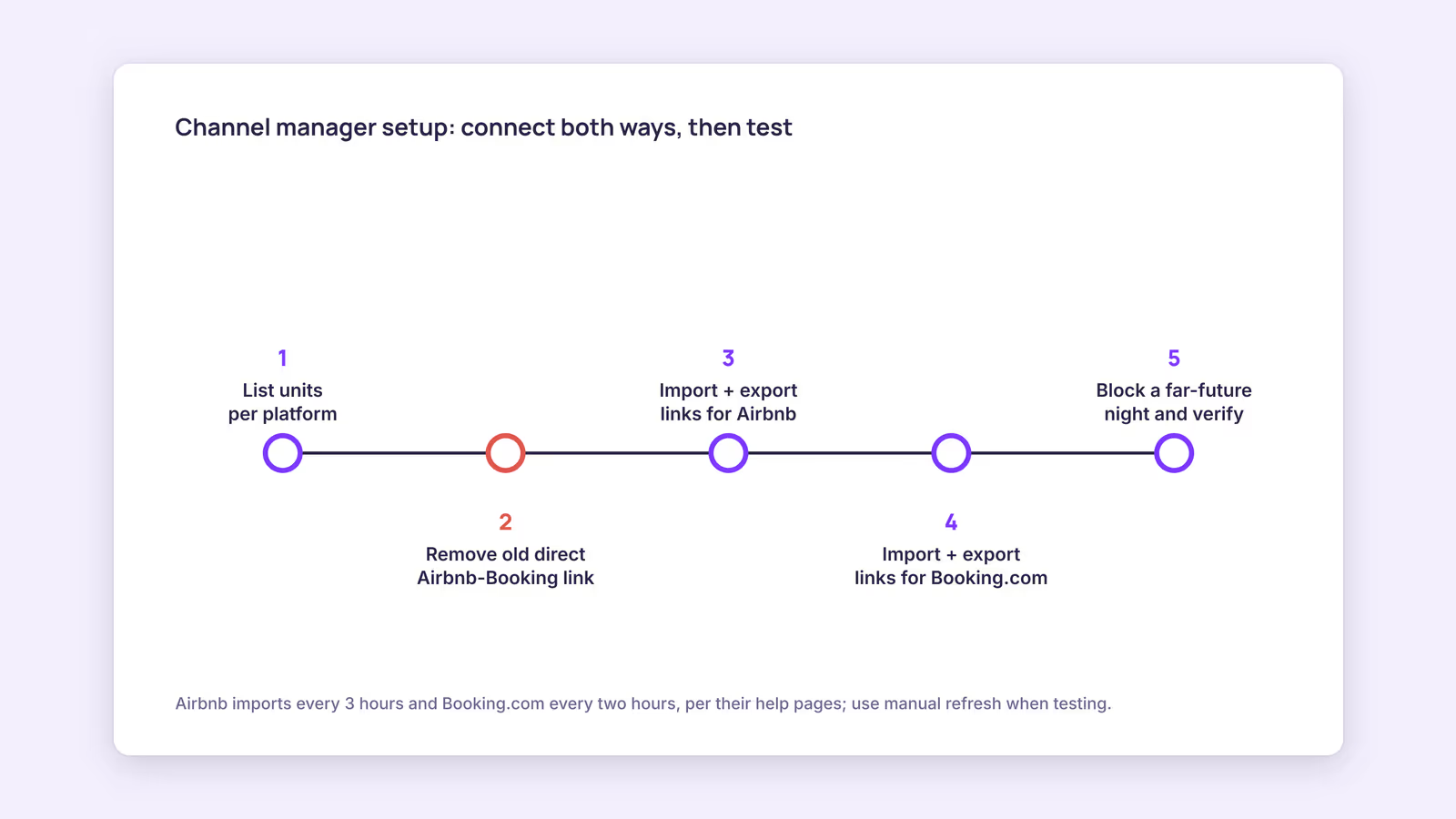
A channel manager setup comes down to one job: every unit needs a working link in both directions between your channel manager and each platform, and you need proof it works before a busy week tests it for you. Start by listing your units and where each one is listed. That list is your map for everything below.
This guide covers the most common beginner route, calendar sync through iCal links with Airbnb and Booking.com. If your tool uses an API connection instead, the concepts are the same but the screens differ, so follow its own onboarding.
What does a channel manager do, and what do you need before setup?
A channel manager keeps one availability calendar per unit and shares it with each platform, so a booking on one site blocks the same nights everywhere else. Before setup, you need platform logins and a unit list.
Gather these first:
- Airbnb host login with access to each listing's calendar settings
- Booking.com extranet login, if you list there
- A unit list: one row per bookable unit, with its Airbnb listing name and Booking.com room name side by side
- A note of existing calendar links: if you already connected Airbnb and Booking.com to each other directly, write those links down, because you'll replace them
With iCal, the calendar carries busy dates only. Prices, minimum stays and guest messages don't travel through it, so you'll still set those on each platform. For a fuller explanation, see what iCal sync is.
How to connect Airbnb to a channel manager
To connect Airbnb to a channel manager, copy Airbnb's export link into the tool, then paste the tool's export link into Airbnb as an import. You need both halves for two-way sync.
Airbnb's help article on syncing your calendar describes the desktop path:
- Click Calendar and select the listing
- Click Availability
- Under Connect calendars, click Connect to another website
- Copy the Airbnb calendar link and add it as an import in your channel manager, mapped to the right unit
- Copy your channel manager's export link for that unit (Airbnb says the link should end in .ics), paste it into the calendar address field, name it, and click Add calendar
Airbnb states that it updates imported calendars automatically every 3 hours, and you can refresh an imported calendar by hand. That delay matters when you test later. Repeat the steps for every listing, because each unit has its own pair of links.
How to connect Booking.com without breaking your calendar
Booking.com uses the same two-way pattern: import the channel manager's link on the Sync calendars page, then export Booking.com's link back into the channel manager for the same room or unit.
According to Booking.com's article on synchronizing calendars across channels, calendar sync isn't enabled for every property, links should contain "/ical/", and sync isn't real time. Booking.com says it imports connected calendars automatically every two hours, with an Import now button for manual updates.
The page also shows a status per connection. "Import only" means Booking.com receives dates from the other calendar but doesn't send its own bookings out. If you see that status, the export half is missing.
One rule prevents most beginner mistakes: once the channel manager is in the middle, remove any old direct link between Airbnb and Booking.com. Our recommendation is one hub per unit, so each booking has a single path to follow.
How do you test a channel manager setup before you trust it?
Test by blocking a far-future night on one platform, then watching it appear in the channel manager and on the other platform, using manual refresh buttons. Unblock it and confirm it clears too.
Pick a date many months out so no real guest can book it mid-test. Then check every hop:
| Check | Where to look | Pass | If it fails |
|---|---|---|---|
| Airbnb block reaches the tool | Channel manager calendar | Night shows busy on the right unit | Wrong link pasted, or mapped to another unit |
| Tool reaches Booking.com | Booking.com calendar after Import now | Night closed on the same room | Channel manager link missing in Booking.com, or status is Import only |
| Booking.com block reaches Airbnb | Airbnb calendar after manual refresh | Night blocked on the same listing | Booking.com export link not imported into the tool |
| Unblock clears everywhere | All three calendars | Night open again on every calendar | Duplicate or old direct link still active |
| Existing bookings imported | Tool calendar vs each platform | Every current reservation appears | Link points to another listing, or the feed is empty |
If a link looks right but data doesn't arrive, run it through the iCal feed checker. It flags missing fields, duplicate event IDs and overlapping events. For bookings that show on one platform and vanish from the feed, see why a booking disappeared from your iCal calendar.
Consider a hypothetical two-unit host who books the same night on both platforms within an hour. With Booking.com importing every two hours and Airbnb every 3 hours, the second booking can arrive before either import runs. This suggests you should still block nights by hand in peak weeks, whichever tool you use.
When this advice does not apply
- API-connected tools: if your channel manager connects through an API, the iCal steps and fetch schedules above don't describe that link. Follow the provider's onboarding. iCal vs API sync explains the difference.
- Properties without calendar sync: Booking.com says sync isn't enabled for all properties. If you can't find the page, contact Booking.com partner support.
- Hotel-style room types: several identical units under one Booking.com room type behave differently from one listing per unit.
- Other platforms: Vrbo and smaller sites use their own menus and schedules, so check their help pages.
What to do next
- Write your unit list with each unit's Airbnb listing and Booking.com room side by side.
- Remove old direct links between Airbnb and Booking.com before adding the channel manager.
- Connect both directions for every unit, one platform at a time.
- Run the far-future block test and fill in the checklist table for each unit.
- Validate any feed that fails with the iCal checker, and block peak-week nights by hand.
FAQ
How do I connect a channel manager in Airbnb?
Airbnb doesn't have a single "connect channel manager" switch for iCal. You paste the tool's export link under Availability, Connect calendars, and copy Airbnb's calendar link into the tool.
How long does channel manager setup take?
It depends on unit count and platforms. The pasting is quick, but the test takes longest because you wait for, or manually trigger, each platform's import.
Can I set it up on my phone?
Airbnb's article covers an iOS path too, but you'll copy links between several screens, so a desktop browser is usually easier.
About BookBed: BookBed gives each unit two-way iCal sync with Airbnb and Booking.com, with every import and export link in one Integrations screen you can audit. Airbnb and Booking.com still fetch on their own schedules. Start your free trial
Sources
- Airbnb Help Center, "Sync your home host calendar to other websites" — Verified 2026-09-30
- Booking.com for Partners, "How to synchronise your calendars across channels" — Verified 2026-09-30
- BookBed, "Documentation: iCal Synchronization" (data/docs.en.json) — Verified 2026-09-30