You've outgrown your current software, or you're paying too much for it, but the switch itself feels risky. A PMS data migration touches the calendars, messages and payment settings that keep guests arriving at the right door on the right night.
Your first action today: open a spreadsheet and list, for each unit, every channel it's connected to and how it's connected: an API link through the software, or an iCal link you pasted in. That list decides your disconnect order, and most migration trouble starts with a connection nobody remembered.
What is PMS data migration, and what actually moves?
PMS migration is moving your units, bookings, rules and guest messaging from one property management system to another, then reconnecting each booking channel so only the new system manages it.
Not everything moves the same way. OTA reservations live on Airbnb and Booking.com, so the new tool picks them up when it connects. Everything you created inside the old tool usually has to be rebuilt or re-entered:
| Item | Where it lives | How it reaches the new PMS |
|---|---|---|
| Airbnb and Booking.com reservations | The OTA | Read on connection (API) or as blocked dates (iCal) |
| Direct bookings | Old PMS only | Export, then re-enter by hand |
| Message templates and timing | Old PMS only | Copy and rebuild |
| Rates, minimum stays, seasonal rules | Old PMS and/or OTA | Rebuild; confirm what each channel shows |
| Past guest messages | OTA inbox and old PMS | Usually stay behind; OTA threads remain on the OTA |
| Payment account (e.g. Stripe) | Your own account | Reconnect to the new tool |
One detail matters if you use iCal. An iCal feed carries busy dates, not full reservation details, so an iCal-connected tool shows an Airbnb booking as a blocked range rather than a guest record. The format is defined in RFC 5545. If you're unsure which connection type you have, iCal vs API sync explains the difference.
How to change channel manager connections without losing bookings?
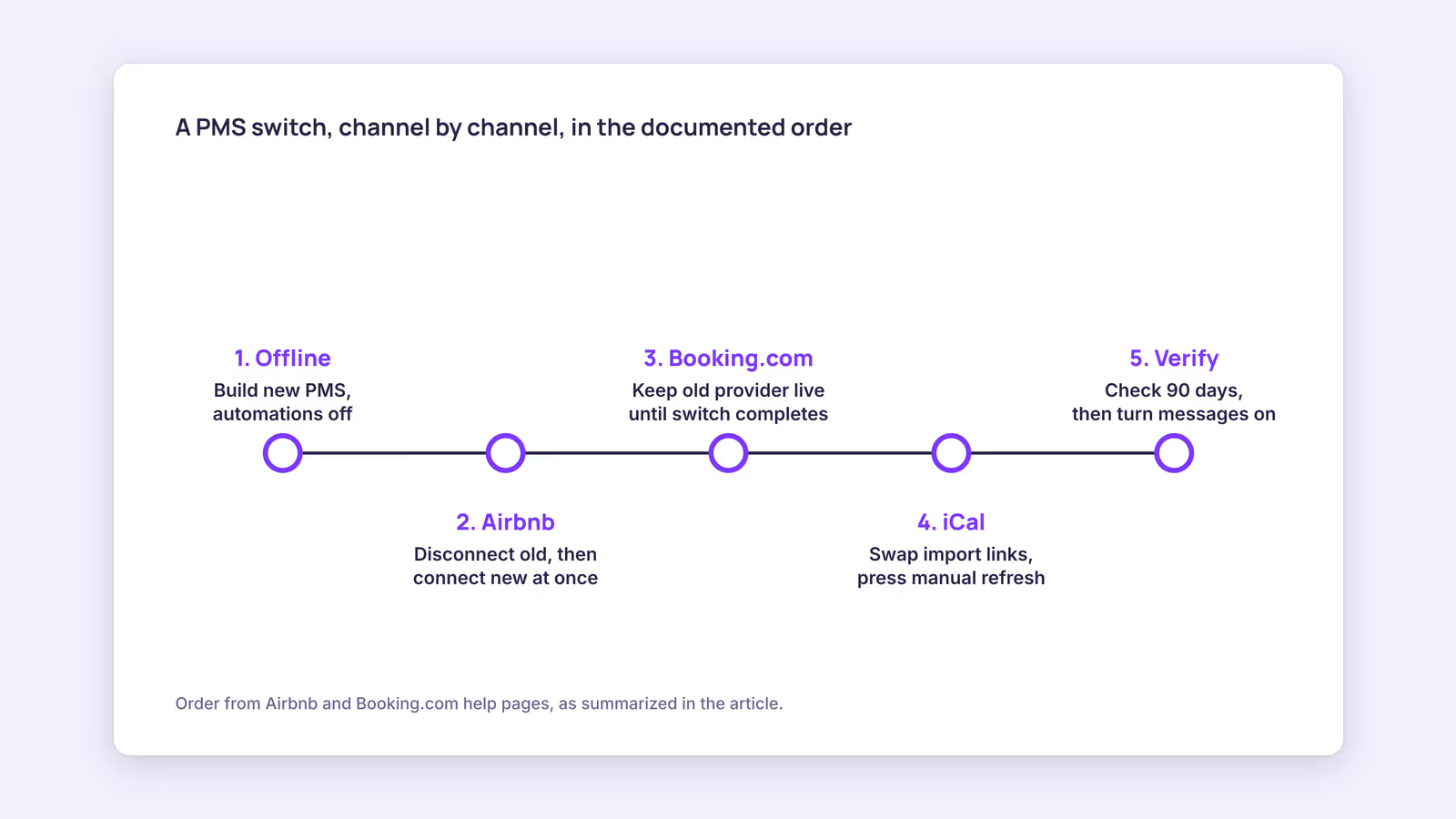
Switch each channel the way that platform documents it, because Airbnb and Booking.com recommend opposite orders: Airbnb says disconnect then reconnect immediately, while Booking.com keeps the old provider live until the new one is ready.
Airbnb, API-connected software. Airbnb's switching guide says to disconnect listings in bulk (Listings, select them, Edit selected, Sync settings, Disconnect), then remove the old provider under Account settings, Privacy and sharing, Connected apps. It must be done in a browser, not the app. Airbnb says to connect the new software straight away to keep availability and pricing accurate, and suggests unlisting or snoozing if you can't.
Booking.com, connectivity provider. Booking.com's connectivity provider guide says you pick a new provider, accept the agreement, and stay connected to the old provider until the switch completes. It explicitly warns not to deactivate the old connection first. Afterward, check rates and availability in the extranet.
iCal on either platform. Remove the old tool's import link and add the new one. Airbnb refreshes imported calendars every 3 hours; Booking.com imports every two hours and notes its calendar sync is only for properties that don't use a connectivity provider. So a new booking can stay sellable on the other channel for hours after the swap. Press the manual refresh on each platform once the new links are in.
Our recommendation: switch on a quiet weekday with few same-day arrivals, and block your next 48 hours of open nights by hand on every channel until the first sync is confirmed.
Which PMS switching order fits your setup?
Use this decision aid. Find your row, follow the order, and don't skip the check column.
| Your current connection | Do first | Do last | Check before moving on |
|---|---|---|---|
| Airbnb via API software | Build the new PMS offline | Disconnect in Sync settings, remove Connected apps access, connect new tool at once | Every listing shows the new software |
| Booking.com via connectivity provider | Request the new provider, keep the old one live | Deactivate the old provider only after the switch completes | Rates and availability in the extranet |
| Either OTA via iCal only | Export the new tool's feed links | Swap import links on both sides, press manual refresh | A test block crosses in each direction |
| Direct bookings in old PMS | Export future stays with dates and payments | Re-enter them, then close the old booking widget | No night is open that's already sold |
If you're moving from an API-connected tool to an iCal-based one, you'll often have one API row and one iCal row per channel. Handle them separately. You can validate each new feed link with the iCal checker before pasting it in.
How do you verify the switch and handle guests arriving that day?
Compare the new calendar against each OTA for the next 90 days, test a direct booking end to end, and message guests arriving during the switch window by hand so nobody gets two sets of instructions.
Work through this in order:
- Night-by-night calendar check. Open Airbnb, Booking.com and the new PMS side by side and confirm every booked night matches for at least 90 days.
- Direct booking test. Book a far-future date through the new widget, confirm it blocks the calendar and shows up on each OTA after their next import, then cancel it.
- Messages off in the old tool first. Turn off the old system's scheduled messages before switching on the new ones. Two tools firing the same check-in message is the most visible migration mistake.
- Same-day and next-day arrivals. Send door codes and check-in details yourself through the OTA's own inbox. Let the new automation start with later arrivals.
- Cancel the old subscription last. Keep read access until you've exported the reports and invoices you need for tax records.
Consider a hypothetical three-unit host switching on a Tuesday. They'd rebuild templates on Monday, swap connections Tuesday morning, spend Tuesday afternoon on the calendar check and Wednesday on the test booking, then cancel the old plan a week later. That's a plan shape, not a promised timeline: your pace depends on how many units and rules you have.
When this advice does not apply
- Hotel-style room types on Booking.com: multi-unit room types sync availability per room type, and the connectivity provider handles mapping. Follow the provider's onboarding steps.
- Large portfolios: Booking.com offers bulk tools for groups of properties; check with both providers before switching one property at a time.
- Other channels: Vrbo and smaller sites have their own switching steps. Check each platform's help pages rather than assuming Airbnb's order applies.
- Payments already taken by the old tool: refunds for those bookings may have to go through the old tool's payment setup. Confirm before canceling it.
What to do next
- Build your per-unit connection list and mark each link as API or iCal.
- Export future direct bookings, message templates and any reports you need for tax records.
- Set up the new PMS with automations off, then compare options in how to choose a vacation rental PMS if you haven't picked one yet.
- Switch each channel using the decision table, then run the five verification checks.
- Cancel the old subscription only after a week of clean syncs.
FAQ
Will I lose my upcoming Airbnb reservations when I switch?
No, the reservations stay on Airbnb. What can go wrong is availability: in the gap between disconnecting and reconnecting, open nights may be sold twice. That's why Airbnb says to connect the new software immediately.
What happens to my past guest messages?
Threads sent through the OTA stay in that OTA's inbox. Messages or notes kept only inside the old PMS usually don't transfer, so export anything you need before canceling.
How do I migrate direct bookings?
Export them from the old tool, then enter each future stay into the new calendar with dates, guest details and payment status. Block those nights first, so they can't be resold while you type.
About BookBed: If you're moving to BookBed, each unit gets one calendar with two-way iCal sync for Airbnb and Booking.com, so every import and export link from your migration list lives in one place you can check. BookBed uses iCal rather than direct platform APIs, and each OTA still fetches on its own schedule. Try BookBed free
Sources
- Airbnb Help Center, "How do I switch to a new software?" — Verified 2026-09-30
- Booking.com for Partners, "Setting up and working with a Connectivity provider" — Verified 2026-09-30
- Airbnb Help Center, "Sync your home host calendar to other websites" — Verified 2026-09-30
- Booking.com for Partners, "Updating your availability calendar in the extranet" — Verified 2026-09-30
- IETF, RFC 5545 "Internet Calendaring and Scheduling Core Object Specification (iCalendar)" — Verified 2026-09-30